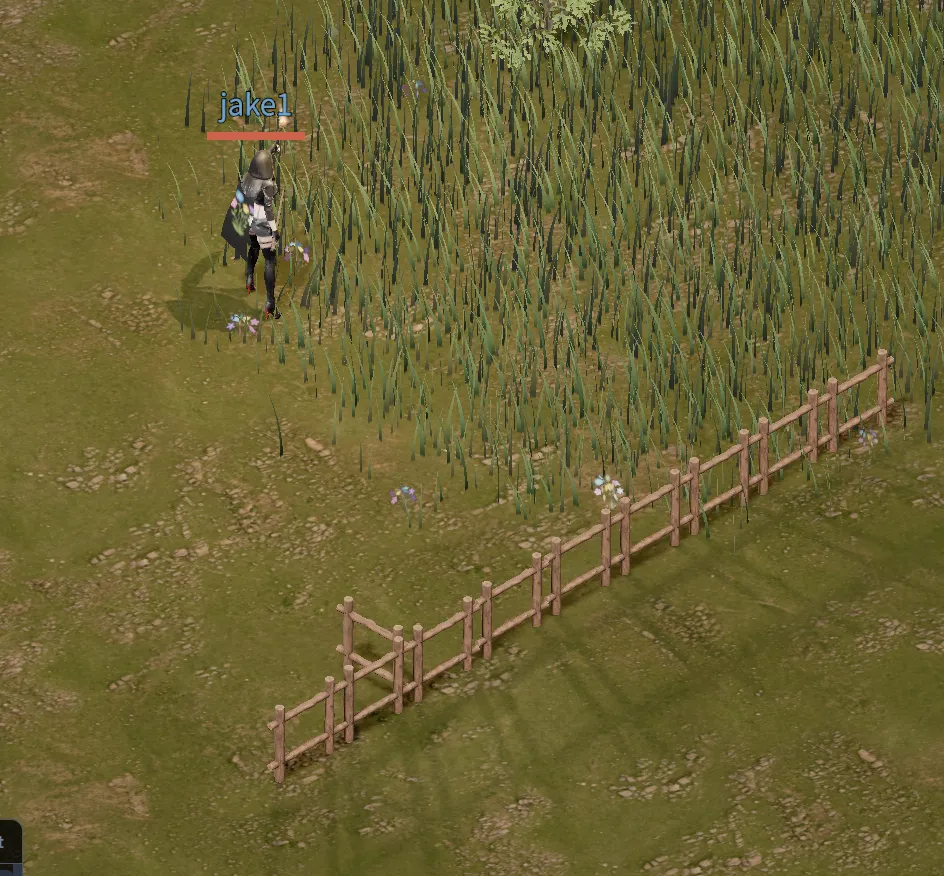
Claiming Your Own Estate
Added an estate system that lets players own land in the world. Find a homestead plot you like, claim it, and expand into neighboring plots or arrange wooden fences to shape your space.
Buying a Land Deed
Aldwin, the Land Registrar in Aldermark’s square, sells the Land Deed. Its base price is 5 gold, and it now has a dedicated model and icon.
There is no level requirement to buy or carry a deed, but your character must be level 10 or higher to claim land.
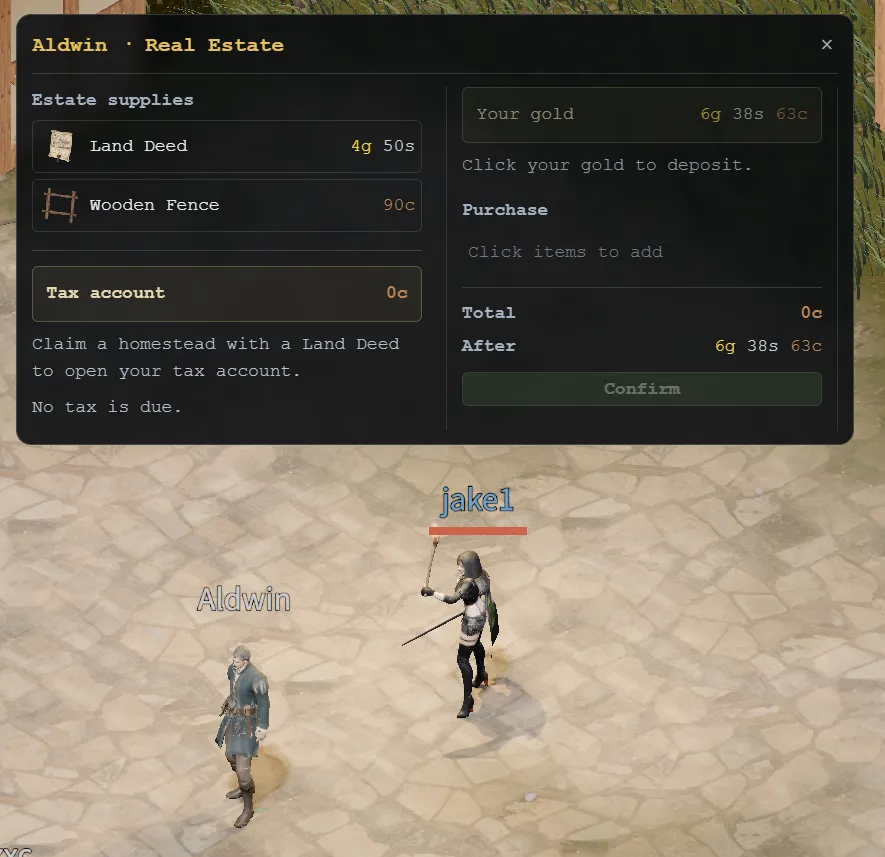
Claiming Land on Site
Stand on the land you want and double-click a deed in your inventory to preview the plot boundary and open the claim dialog. Each plot measures 32×32 meters. Moving with the preview open updates the selected plot and whether it can be claimed.
Only unowned homestead plots can be claimed. If a location does not meet the requirements, a red grid appears with an explanation. Confirming a successful claim consumes one deed; canceling or failing to claim leaves the deed in your inventory.
Each account can have one homestead estate. The character who owns it can claim plots that share an edge with the estate, expanding it to a maximum of 16 plots. Ownership is saved and persists when you reconnect.
Below is how estates appear on the world map.
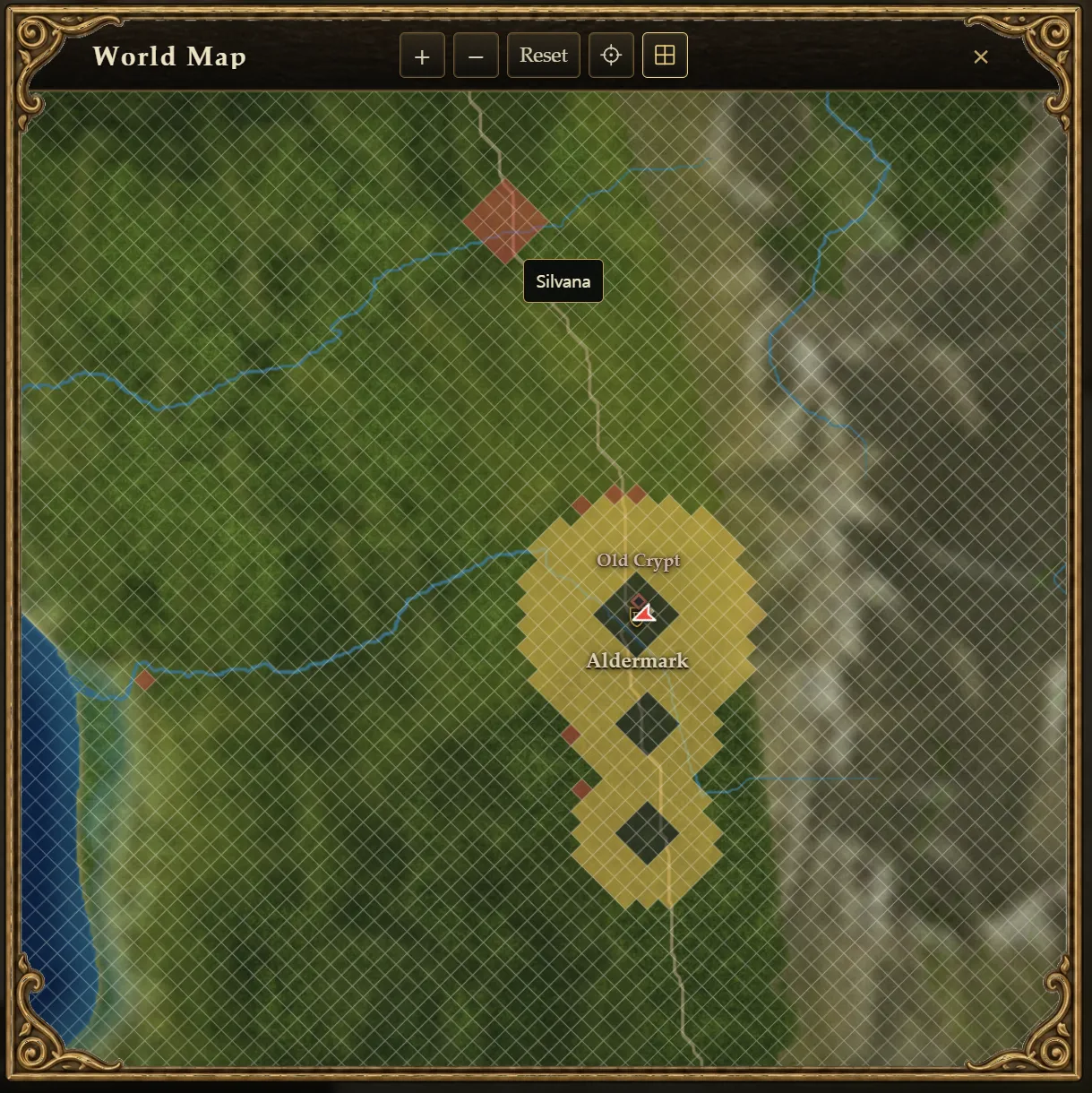
On the world map, red marks estates owned by other players. Yellow marks land reserved for the king to grant as estates in the future.
Managing the Tax Account
Aldwin’s real estate management window lets you manage your estate’s tax account. You can check the balance, next payment date, expected tax, and overdue status, then deposit or withdraw gold. The payment date appears alongside the remaining time in real hours or days.
Taxes are collected automatically from the account at the start of each in-game month, with the first payment waived after the estate is initially claimed. If payments are overdue, funding the account to cover all missed tax plus one month’s tax restores it to good standing and waives the next payment.
Placing Wooden Fences
Double-click a wooden fence purchased from Aldwin to enter placement mode. A one-meter grid follows the terrain across your estate, and a preview shows where the fence will go as you move the cursor.
Click an empty grid edge to place one fence, or click an existing fence to recover it into your inventory. The preview uses green for placement, orange for recovery, and red for invalid locations. Fences can also be placed along the estate’s outer boundary, and they remain after you reconnect.
Overdue taxes prevent new fence placement. Existing fences can still be recovered.